How to Uninstall Microsoft Office 2011 (Mac)

So here I bring one of the best article I’ve visited so many times up until last month. It is surprising to see how many users still use old Office 2011 but again everything getting way expensive and really how many of us really need latest and the greatest ( Except all the apple share holders šŸ™‚ )

Anyways, I’m going to copy past article entirely, because there is nothing to edit. Even though it says OS X 10.7 nothing change even for the latest OS. So all the credit goes to https://it.uib.no/ithelp/index.php?title=How_to_Uninstall_Microsoft_Office_2011_(Mac)&oldid=5075

Just a few cent from me, before do anything try to do time machine backup and make sure you don’t have anything sitting in the trash that you need again. Yes backup takes time but it take even longer if you have to reload system!!

  1. StartĀ Finder, go toĀ ApplicationsĀ and delete the folderĀ Microsoft Office 2011.
DeleteOfficeFolder.png
  • Navigate toĀ the system library.Ā NB! Please keep in mind that all users have their own library as well.
Library.png
  • OpenĀ Internet Plug-InsĀ and delete all Sharepoint files.

InternetPlugIns.png
DeleteSharepoint.png
  • Return to the library and openĀ LaunchDaemons.
LaunchDaemons.png
  • DeleteĀ com.microsoft.office.licensing.helper.plist.

DeleteHelperPlist.png
  • Go back to the library and openĀ Preferences.
Preferences.png
  • DeleteĀ com.microsoft.office.licensing.plist.

DeleteLicensingFile.png
  • Navigate to the folderĀ PrivilegedHelperTools, also in the system library.
PrivilegedHelperTools.png
  • Find the file calledĀ com.microsoft.office.licensing.helperĀ and delete it.
DeleteHelperFile.png
  • Empty the trash and restart the computer to complete the operation.

UBNT firmware manual update / Firmware update stuck

One of my client site visited recently I came across UBNT AP-LR model AP. Issue is that it was setup by previous phone provider and they manged it. But with recent changes company wanted to re-use it for wifi and mange it. As you know once ubnt adopted by controller you have to factory reset it in order to adopted by another controller. So here is what I did.

In this case I had no access what so ever for previous ubnt management software so there are no way I can reset the controller or reset via SSH. Now I had to resort to traditional method of going up to the ceiling and opening unit and holding reset button and reset it with paper clip and I was able to get reset it. In this case I had to put pin in and hold it till it reboot twice and reboot it via POE injector once to show up on the controller. You can see full info here and it will discuss unit reset via SSH too https://help.ubnt.com/hc/en-us/articles/205143490-UniFi-How-to-Reset-the-UniFi-Access-Point-to-Factory-Defaults

After I got reset it and once the unit was flashing, I logged in and download latest ubnt management software and install it on the server. After I log onto a controller I was able to see the ubnt unit and I clicked on update firmware and adopt then the trouble started!!!

ubnt unit was stuck on infinity downloading and never completed. Several reboot via injector and re loading management software didn’t help. First my though was firewall must be blocking it or ubnt cannot reach DNS which I saw in several post on the internet forums. I was able to SSH into ubnt unit via local IP with putty and confirm that it actually can reach out to the internet and no issues with FW (btw default un/psw is ubnt/ubnt). So back to troubleshooting and reading on the internet!!

Finally I came a cross post that some of the ubnt get stuck on infinity download loop if they weren’t updated for long time or UBNT change or update the product category, solution will be manual update. Here is the steps I took and was able to get unit updated and adopted by the controller!!

First here is the detail article for UBNT manual firmware change https://help.ubnt.com/hc/en-us/articles/204910064-UniFi-Changing-the-Firmware-of-a-UniFi-Device#SSH

I’m a windows user so all my links are windows related and there are are two ways you can do this.

First method ( This is the easy one)

***Locate your AP local ip and SSH into it via putty

****then run upgradeĀ http://dl.ui.com/path/to/upgrade-vX.Y.Z.tar

There is catch with KB article if you try to use firmware path you can get from ubnt firmware download page https://www.ui.com/download/unifi/unifi-ap it always gives you https address which will not work via SSH command line upgrade it will cannot make secure connection and use ” –no-check-certificate ” end line but I tried many times and it didn’t work for whatever the reason. In order to by pass this easy DON”T USE HTTPS AND EDIT line as HTTP. Here is the working command

upgrade http://dl.ubnt.com/unifi/firmware/BZ2/4.0.15.9872/BZ.ar7240.v4.0.15.9872.181229.0259.bin

No you will see it is updated without and issue. In this case I have use AP-LR firmware for my device. Here is the link for ubnt AP-LR unit if any one need it to download manually https://drive.google.com/file/d/1xchjBNOMWd_AoYIZHkugwHRjfFQR_EjL/view?usp=sharing

Second method (The Hardway)

****First download WinSCP https://winscp.net/eng/download.php and install it

****Download correct firmware for your model from https://www.ui.com/download/unifi/

****Connect to AP with winscp via local ip and copy .bin firmware to device /tmp/ folder

****Connect to AP via SSH and run syswrapper.sh upgrade2 &

****Done!!!

How to Install Open Mange on ESXI

This tested on ESXI 6.5 and I’m sure it not much change since.

Download Esxi VIB version you need from Dell site and also the Windows ver need

Download WinSCP and Putty. You gonna need it.

https://winscp.net/download/winscp575setup.exe

https://www.putty.org/

Enable SSH on esxi

In esxi go to service and SSH, click Configuration Tab\Security Profile\Properties Set to Start Automatically.

Open WinSCp and connect with ESXI and copy downloaded files , I mean VIB file to /var/log/vmware

Then open putty and connect with ESXI and run the command and use your ZIP file name

esxcli software vib install -d /var/log/vmware/OM-SrvAdmin-Dell-Web-8.1.0-1518.VIB-ESX60i_A00.zip

Now you can install open mange on the server OS and connect to hardware via Dell open mange.

How to Uninstall Sophos End point

I had situation where we had to uninstall sophos end point but unfortunately we had deleted agent off of a cloud console. So we were pretty much out of luck with uninstall since sophos agent had tamper protection on. One of my colleague came up with this brilliant script he found and it worked like charm!!

First boot PC into safe mode

Then save below as batch job and run it and will need to reboot back and then sophos will be gone.

This script also useful when PC is already on console and if you want to remove AV out of batch of Pc’s. Simply disable tamper protection from cloud console and give some times and then run the batch job.

net stop “SAVService”
net stop “Sophos AutoUpdate Service”
“C:\Program Files\Sophos\Sophos Endpoint Agent\uninstallcli.exe”
:Sophos AutoUpdate XG Endpoint (5.13.51) Server (5.13.51)
MsiExec.exe /qn /X{7CD26A0C-9B59-4E84-B5EE-B386B2F7AA16} REBOOT=ReallySuppress
MsiExec.exe /qn /X{BCF53039-A7FC-4C79-A3E3-437AE28FD918} REBOOT=ReallySuppress
MsiExec.exe /qn /X{9D1B8594-5DD2-4CDC-A5BD-98E7E9D75520} REBOOT=ReallySuppress
MsiExec.exe /qn /X{AFBCA1B9-496C-4AE6-98AE-3EA1CFF65C54} REBOOT=ReallySuppress
MsiExec.exe /qn /X{E82DD0A8-0E5C-4D72-8DDE-41BB0FC06B3E} REBOOT=ReallySuppress
MsiExec.exe /qn /X{72E136F7-3751-422E-AC7A-1B2E46391909} REBOOT=ReallySuppress
:Sophos Anti-Virus Endpoint 10.8.2.342
MsiExec.exe /qn /X{8123193C-9000-4EEB-B28A-E74E779759FA} REBOOT=ReallySuppress
MsiExec.exe /qn /X{36333618-1CE1-4EF2-8FFD-7F17394891CE} REBOOT=ReallySuppress
MsiExec.exe /qn /X{DFDA2077-95D0-4C5F-ACE7-41DA16639255} REBOOT=ReallySuppress
MsiExec.exe /qn /X{CA3CE456-B2D9-4812-8C69-17D6980432EF} REBOOT=ReallySuppress
MsiExec.exe /qn /X{CA524364-D9C5-4804-92DE-2800BDAC1AA4} REBOOT=ReallySuppress
MsiExec.exe /qn /X{3B998572-90A5-4D61-9022-00B288DD755D} REBOOT=ReallySuppress
MsiExec.exe /qn /X{4BAF6F55-FFE4-4A3A-8367-CC2EBB0F11C3} REBOOT=ReallySuppress
MsiExec.exe /qn /X{BA8752FE-75E5-43DD-9913-23509EFEB409} REBOOT=ReallySuppress
:Sophos Anti-Virus Server 10.8.1.316
MsiExec.exe /qn /X{72E30858-FC95-4C87-A697-670081EBF065} REBOOT=ReallySuppress
MsiExec.exe /qn /X{66967E5F-43E8-4402-87A4-04685EE5C2CB} REBOOT=ReallySuppress
MsiExec.exe /qn /X{2519A41E-5D7C-429B-B2DB-1E943927CB3D} REBOOT=ReallySuppress
MsiExec.exe /qn /X{6654537D-935E-41C0-A18A-C55C2BF77B7E} REBOOT=ReallySuppress
:Sophos System Protection
MsiExec.exe /qn /X{934BEF80-B9D1-4A86-8B42-D8A6716A8D27} REBOOT=ReallySuppress
MsiExec.exe /qn /X{1093B57D-A613-47F3-90CF-0FD5C5DCFFE6} REBOOT=ReallySuppress
:Sophos Network Threat Protection Endpoint (1.6.196) Server (1.5.213)
MsiExec.exe /qn /X{604350BF-BE9A-4F79-B0EB-B1C22D889E2D} REBOOT=ReallySuppress
:Sophos Health Endpoint (2.0.7.80) Server (2.0.6.828)
MsiExec.exe /qn /X{A5CCEEF1-B6A7-4EB4-A826-267996A62A9E} REBOOT=ReallySuppress
MsiExec.exe /qn /X{D5BC54B8-1DA1-44F4-AE6F-86E05CDB0B44} REBOOT=ReallySuppress
MsiExec.exe /qn /X{E44AF5E6-7D11-4BDF-BEA8-AA7AE5FE6745} REBOOT=ReallySuppress
:Sophos Diagnostic Utility Endpoint (1.21.0.0) Server (1.21.0.0)
MsiExec.exe /qn /X{4627F5A1-E85A-4394-9DB3-875DF83AF6C2} REBOOT=ReallySuppress
:Heartbeat
MsiExec.exe /qn /X{DFFA9361-3625-4219-82C2-9EF011E433B1} REBOOT=ReallySuppress
:Sophos Management Communications System Endpoint (4.8.5) Server (4.8.5)
MsiExec.exe /qn /X{A1DC5EF8-DD20-45E8-ABBD-F529A24D477B} REBOOT=ReallySuppress
MsiExec.exe /qn /X{1FFD3F20-5D24-4C9A-B9F6-A207A53CF179} REBOOT=ReallySuppress
MsiExec.exe /qn /X{D875F30C-B469-4998-9A08-FE145DD5DC1A} REBOOT=ReallySuppress
MsiExec.exe /qn /X{2C14E1A2-C4EB-466E-8374-81286D723D3A} REBOOT=ReallySuppress
:Sophos Management Communications System Endpoint (4.9.204)
“C:\Program Files (x86)\Sophos\Management Communication System\Endpoint\uninstall.exe” /uninstall /quiet
“C:\Program Files\Sophos\Management Communication System\Endpoint\uninstall.exe” /uninstall /quiet
:UI
MsiExec.exe /qn /X{D29542AE-287C-42E4-AB28-3858E13C1A3E} REBOOT=ReallySuppress
:Sophos Endpoint Firewall Endpoint (1.1.0.0) Server (1.1.0.0)
MsiExec.exe /qn /X{2831282D-8519-4910-B339-2302840ABEF3} REBOOT=ReallySuppress
:Sophos Endpoint Self Help Endpoint (2.0.103) Server (2.0.103)
MsiExec.exe /qn /X{4EFCDD15-24A2-4D89-84A4-857D1BF68FA8} REBOOT=ReallySuppress
MsiExec.exe /qn /X{BB36D9C2-6AE5-4AB2-BC91-ECD247092BD8} REBOOT=ReallySuppress
:Sophos Lockdown 7.1.1.1
MsiExec.exe /qn /X{77F92E90-ED4F-4CFF-8F60-3E3E4AEB705C} REBOOT=ReallySuppress
:Sophos File Scanner Endpoint (1.3.10) Server (1.2.0)
“C:\Program Files\Sophos\Sophos File Scanner\Uninstall.exe”
:Sophos Standalone Engine Endpoint (1.2.15) Server (1.2.3)
“C:\Program Files\Sophos\Sophos Standalone Engine\uninstall.exe”
:Sophos ML Engine
“C:\Program Files\Sophos\Sophos ML Engine\uninstall.exe”
:Sophos Endpoint Agent 2.0.0
“C:\Program Files\Sophos\Sophos Endpoint Agent\uninstallgui.exe”
:Sophos Clean Endpoint (3.8.5.111) Server (3.8.4.189)
“C:\Program Files (x86)\Sophos\Clean\uninstall.exe”
:Sophos Endpoint Defense Endpoint (2.0.0.394) Server (1.5.1.6)
“C:\Program Files\Sophos\Endpoint Defense\uninstall.exe”
:HMPA (managed)
“C:\Program Files (x86)\HitmanPro.Alert\hmpalert.exe” /uninstall /quiet
:HMPA 1.0.0.699
“C:\Program Files (x86)\HitmanPro.Alert\uninstall.exe”
:HMPA 3.7.14.265
“C:\Program Files\HitmanPro\HitmanPro.exe” /uninstall /quiet

Issue with 2016 Server activation

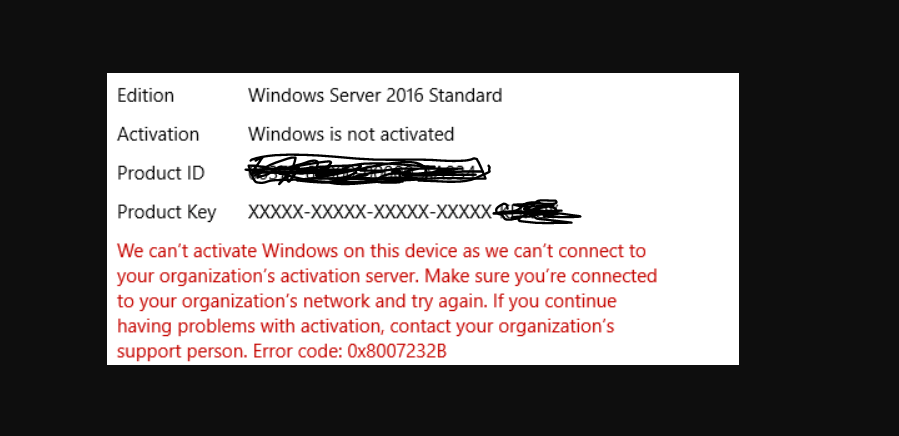
I’ve recently came across deployment of server 2016 std VLC license. Once I get server setup and completed I tried to activate the server and it was keep saying that cannot activate.

After done some few research and reading found out that I’m not the only one!!

There are many admins having the same issue and it seems to be a bug on 2016. It may have been fixed by now but if you run into same issue follow theses steps and you will be back in business no time

First bring up CMD as administartor and run

slmgr /ipk XXXXX-XXXXX-XXXX-XXXX-XXXX ( this is you activation key)

2nd command

slmgr /skms kms.xspace.in

3rd command

slmgr /ato

that’s it!!

How to use Old Sophos Astaro or SG box for home use

I’m sure some of us got a hands on old Astaro or SG box and thinking hah I might be able to use it in home and move up to enterprise from current residential one. There is no better way to learn about any product hands on practice, specially thing not working on home and you have to get that going ASAP!.

So recently I came a across old decommissioned astaro box, good thing about sophos is there software interface pretty much exactly same and only change happened on HW, same as Cisco IOS. So this described instruction will work on almost all the astaro/Sophos boxes. You can read more about Sophos UTM home ver from https://www.sophos.com/en-us/products/free-tools/sophos-utm-home-edition.aspx

Okey lets get down to business. First you need to go to above link and click on get started and it will ask you to sign up for Sophos. This important because sophos will send you license file to this address need to register the device. So please don’t setup none@none.com address as email. Once you do that you will get license file and instruction to download ISO image for UTM https://www.sophos.com/en-us/support/utm-downloads.aspx .

Once you download the ISO burn to a disk because install via this ISO will not work on sophos or astaro boxes. It will go through the install and will throw an error such as ” install.tar missing ”

If you really desperate for install via USB you can follow this link and try to get this working https://www.fastvue.co/sophos/blog/creating-your-own-sophos-utm-bootable-usb-installation-drive/ . But again I had lots of trouble, so I resort out to burning to a DVD and install via USB DVD drive. Pretty much click next next and get this going.

Once you done install it will show a message saying to mange go to https://192.168.0.1:4444. Basically this is default for all UTMs out of the box. Set your PC NIC to 192.168.0.10 or something and subnet to 24bit and connect to LAn port of the UTM box and open browser and setup UTM. It is very easy process and nothing complex.

When you setting up utm it is very important to go through the process and use 30 free license when option when its prompt, because you will not be able to add home license to SG or Astaro box. So go though process and setup the way you want it in the home network as any firewall/router. As you all know there are some advance nice features with this Sophos UTM which none of the home FW comes with.

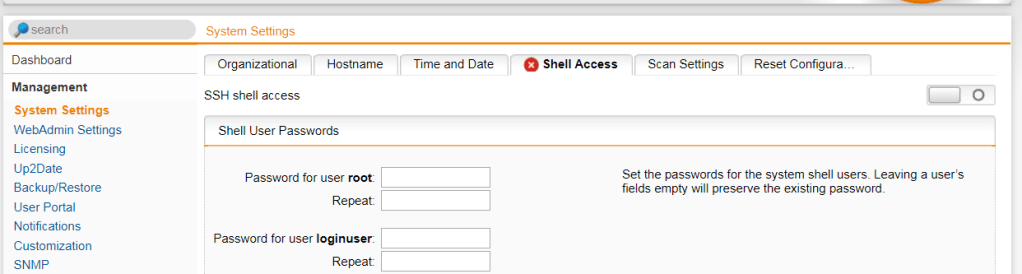
So once you done with all log into UTM from web page ( I assume you kept the default 192.168.0.1 as LAN gateway IP which I usually don’t šŸ™‚ ). Once you log in and go to management—->System Settings and Shell Access and setup password, because we going to need this for shell access via putty.

Once you done that download any ssh client( I use putty ) https://www.putty.org/ . once you SSH into the system then login as Loginuser and type su and then ” rm /etc/ASG “( there is space between rm /etc/ASG). After that type reboot and you will be able to log back onto UTM web and install home license. Also you may have to cd into /etc and rm asg which I seen few times. https://community.sophos.com/products/unified-threat-management/f/hardware-installation-up2date-licensing/10987/home-license-on-sg115

There are so many features comes with sophos utm home that many of home user never would think of but again who know. Anyways good luck with UTM home!!!

Well why I’m doing this?

As techs we all brows through many many KB articles,manuals and of course other people works and post on forums and blogs good part of our daily lives trying to solve problems. But what I’ve seen is many of theses are in vast internet post, forums and pages and no inter connections.

I do not know how many times I had to read through many of the KB and manuals and post to get one thing function with network gears and servers/PCs. During my work life I’ve thought to myself may be million times why don’t we see some thing like “how to get old Astaro or SG to work with Sophos UTM home version? “or “how to setup RDS from scratch” in one post. So here I’m decided to start my own blog!!

Many of my post

  • Will be my own experience working with many areas in tech world
  • Will be step by step so you can follow step and get things to work at least point you in the right direction

Many of my post will be all over the place because I work in area and place where I use all kind of IT and gears. May be this will be useful to you or may be laugh at it saying what a idiot!!!

Well if it is useful I”ll be delighted and pardon my grammar and mistakes cause I’m a tech and not and English teacher.