

We have observed that Single Sign-On (SSO) may fail for some applications after installing recent Windows Server updates on domain controllers (KB5082123 and KB5087538).
This issue is caused by Microsoft’s continued efforts to strengthen Kerberos authentication security. The updates enforce stronger encryption requirements and reduce support for older, less secure encryption types.
If your application uses a keytab file to decrypt Kerberos tickets and the keytab was generated some time ago without explicitly specifying the encryption type, SSO authentication may start failing after these updates are applied.
Resolution
1. Enable Stronger Encryption on the Service Account
Update the service account used by the application to support modern Kerberos encryption types (such as AES256).
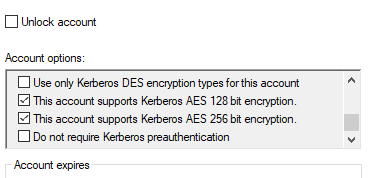
2. Reset the Service Account Password
After enabling stronger encryption, the service account password must be reset for the changes to take effect.
To avoid application disruptions, you can reset the password to the same value currently in use.
3. Generate a New Keytab File
Generate a new keytab file using the updated encryption settings. Run the following command on a domain controller. Be sure to open Command Prompt with Administrator privileges.
ktpass -out c:\temp\gateway.keytab ^-princ HTTP/gateway.example.com@EXAMPLE.COM ^-mapuser gateway-service-account ^-crypto AES256-SHA1 ^-ptype KRB5_NT_PRINCIPAL ^-pass *
4. Update the Application
Upload the newly generated keytab file to the affected application and follow the vendor’s documentation for updating Kerberos credentials.
Conclusion
After replacing the old keytab file with one generated using AES256 encryption, Kerberos authentication should function normally again. Applications relying on older encryption types may require similar updates as Microsoft continues to strengthen Kerberos security requirements in future releases.

